









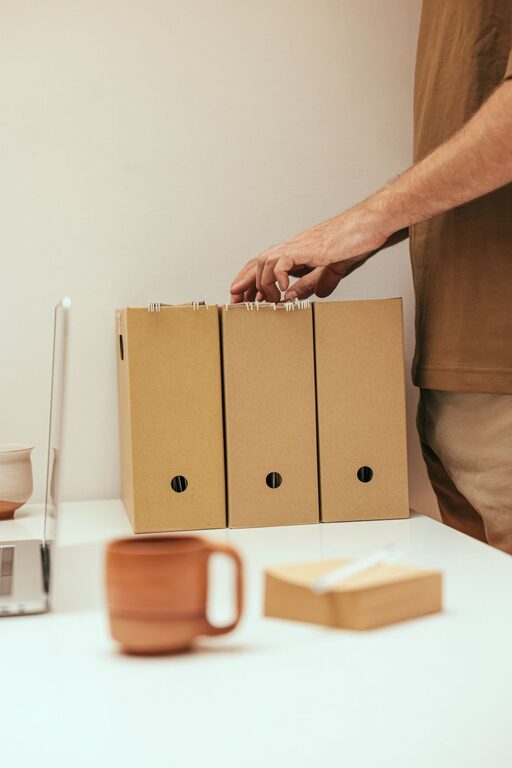
Organizing files on your computer may seem like a daunting task, but with the right approach, it can become a straightforward and even satisfying process. A well-organized file system helps you save time, reduces stress, and boosts productivity by making it easy to locate what you need when you need it. Whether you are managing work documents, personal photos, or miscellaneous downloads, these tips will guide you toward a cleaner and more efficient digital workspace.
Why Organizing Files Matters
Before diving into the how-to, it’s important to understand why organizing your files is worth the effort:
– Easier Access: Quickly find files without endless searching.
– Improved Productivity: Spend less time sorting through clutter.
– Space Management: Identify and remove unnecessary or duplicate files.
– Data Safety: Easier backups and better file version control.
Now, let’s explore some practical tips for getting your computer files in order.
1. Plan Your Folder Structure
Start by designing a logical folder hierarchy that matches how you think about your files.
Tips for an Effective Folder Structure:
– Keep it simple: Avoid deeply nested folders with many subfolders.
– Use broad categories: Start with general folders like Work, Personal, Photos, or Projects.
– Create subfolders for specifics: Within Work, you might have folders for different clients or projects.
– Be consistent: Use similar naming patterns throughout your folders.
Example folder structure:
“`
– Documents
– Work
– Client A
– Client B
– Personal
– Photos
– Vacations
– Family
– Downloads
“`
2. Name Files Clearly and Consistently
File names are key to quickly recognizing the content without opening the file.
Best Practices for File Naming:
– Be descriptive: Include relevant details like date, project name, or content summary.
– Use dates in a consistent format: For example, YYYY-MM-DD or MM-DD-YYYY for sorting.
– Avoid special characters: Stick to letters, numbers, hyphens, and underscores to prevent issues across different systems.
– Use lowercase letters for uniformity: This can help avoid confusion on case-sensitive systems.
Example filename: `2024-06-05_project-report_final.pdf`
3. Declutter Regularly
Getting organized is not a one-time activity. Schedule regular sessions to clean up and rearrange files.
How to Declutter Effectively:
– Delete unnecessary files: Remove duplicates, outdated drafts, or files you no longer need.
– Archive old files: Move rarely accessed files to an external drive or cloud storage.
– Empty the Downloads folder: This folder quickly fills up with temporary files.
– Use disk cleanup tools: Built-in utilities can help clear cache and temporary files.
4. Utilize Tags and Metadata (If Available)
Many operating systems and some applications support file tags or metadata to add supplementary information.
Benefits of Using Tags:
– Cross-folder search: Tags help locate files across different folders.
– Better sorting: Group related files without moving them physically.
– Custom categories: Create your own tagging system based on projects, priorities, or file types.
Check your operating system’s documentation to learn how to add and use tags.
5. Backup Your Files Regularly
An organized file system is only helpful if your data is safe.
Backup Tips:
– Use automated backup services: Cloud solutions like Google Drive, OneDrive, or Dropbox.
– Create local backups: Use an external hard drive or USB for an extra layer of protection.
– Set a backup schedule: Weekly or monthly backups are good starting points.
– Test your backups: Make sure you can restore files when needed.
6. Use File Management Software
If you handle a large number of files, software can simplify organization.
Recommended Tools:
– File Explorer (Windows) or Finder (Mac): Take advantage of built-in features such as sorting, grouping, and searching.
– Duplicate file finders: Help identify and remove duplicate files to save space.
– Document management apps: For advanced tagging, version control, and collaboration.
7. Organize Your Desktop
The desktop is often the first place files accumulate, so keep it tidy.
Desktop Organization Tips:
– Limit shortcuts and files: Keep only frequently accessed items on the desktop.
– Use folders: Group related shortcuts or files in desktop folders.
– Use desktop management tools: Some apps help arrange and categorize desktop icons automatically.
8. Maintain Good Habits Daily
Consistency is key to staying organized over time.
Daily File Management Tips:
– Save files in appropriate folders immediately: Avoid saving everything to the Desktop or Downloads.
– Review new files weekly: Move, rename, or delete files as necessary.
– Close unused files and applications: This helps reduce clutter and can improve computer performance.
Conclusion
Organizing files on your computer is a manageable task that pays off in saved time and less frustration. By planning your folder structure, naming files clearly, decluttering regularly, backing up your data, and maintaining good habits, you create a digital environment that supports productivity and peace of mind.
Start with small steps today, and gradually build an organized system that works best for you!